


WordPress vs Webflow: Which Platform Tanks Your SEO
What People Actually Ask About WordPress and Webflow
Which is better for beginners, WordPress or Webflow?
Webflow often feels more intuitive for design-focused beginners with no coding skills, thanks to its visual editor. WordPress has a steeper learning curve unless you stick to pre-made themes, but it’s more flexible once you get the hang of it.
Is WordPress cheaper than Webflow?
WordPress itself is free, but hosting, themes, and plugins can add up to $100-500+ per year. Webflow starts at $14/month for basic plans, with predictable costs but less room for free options.
Can I scale a business site with Webflow?
Yes, Webflow handles scaling for e-commerce and larger sites with plans up to $235/month, though it’s not as proven for massive traffic as WordPress with custom hosting.
Does WordPress offer better SEO than Webflow?
WordPress has a slight edge with plugins like Yoast for granular SEO control. Webflow has solid built-in tools, but they’re less customizable for advanced users.
Which platform is faster to build a site on?
Webflow often wins for speed if you want a custom design without coding, taking days instead of weeks. WordPress can be quicker with templates, but custom builds drag on if you’re not a developer.
| Feature | WordPress (Modern Block Era) | Webflow |
| SEO Authority | Deep. Best for “topical authority” with complex taxonomies and massive content libraries. | Fast. Excellent for “Core Web Vitals” right out of the box with zero extra effort. |
| Development | PHP & Blocks. You rely on themes or page builders (Elementor/Divi) and plugins. | Visual CSS. You’re basically coding visually. It generates clean, professional-grade HTML/CSS. |
| Ownership | 100% Ownership. You can pack up your files and move to any host in the world. | Leased. You are tied to Webflow’s hosting. If you export the code, you lose the CMS functionality. |
| Customization | Infinite. If there isn’t a plugin for it, you can build it. Integrates with everything. | Design-First. Pixel-perfect design is easier, but complex backend logic can be a wall. |
| Maintenance | Active. You’re responsible for security patches, plugin updates, and database cleanups. | Passive. Webflow is a managed SaaS. They handle the security and server tech for you. |
Where Each Platform Wins (and Fails Spectacularly)
WordPress
Benefits: It’s the king of “Programmatic SEO.” If you’re building a site with 10,000 pages based on data feeds, WordPress handles it better. The plugin ecosystem (Rank Math/Yoast) still offers the most granular control over Schema and LLM optimization.
Downsides: “Plugin bloat” is a real threat to your page speed. It requires a disciplined stack to keep it fast, and the security risks are higher because it’s such a common target for hacks.
Webflow
Benefits: The “Clean Code” isn’t a myth—it really does help with Google’s indexing speed. For boutique clients or high-end brands that need “wow” animations without slowing down the site, Webflow is unbeatable.
Downsides: It gets expensive fast as you add CMS items or traffic. Also, for a content-heavy blog, the editor feels a bit “stiff” compared to the fluid writing experience of the WordPress Gutenberg editor.
Head-to-Head: WordPress vs Webflow Scores
WordPress
Score: 90/100
Why: It remains the gold standard for SEO experts because of the sheer data control. In 2026, with its new AI-assisted building features, it’s closed the ease-of-use gap significantly.
Webflow
Score: 85/100
Why: It’s a designer’s dream and a speed-lover’s paradise. It loses points on “lock-in” and the higher total cost of ownership for larger sites, but for a 20-page business site, it’s nearly perfect.
WordPress vs Webflow Speed, Cost, and Real Results
Why This Choice Defines Your Site’s Future
Over 40% of websites run on WordPress, while Webflow is carving out a serious niche with over 200,000 users since its launch. Picking the wrong platform can cost you thousands in redesigns, lost traffic, or wasted hours wrestling with tools that don’t match your skill level. I’ve seen businesses crumble because their site couldn’t scale with traffic spikes, or because they picked a system too complex for their team to maintain. This choice isn’t just technical, it’s personal. Your site is often the first interaction customers have with your brand. Get it wrong, and you’re bleeding money before you even start. I’m breaking down WordPress vs Webflow to show you what each platform delivers, where they falter, and how they impact your bottom line.
Think about your goals for a second. Are you launching a blog that needs to grow over time with minimal upfront cost? Or do you need a pixel-perfect portfolio site ready in a week without touching a line of code? Maybe you’re building an online store with hundreds of products. Each scenario tilts the scales differently between these two. WordPress has been my go-to for years when I need raw power and endless customization, but I’ve turned to Webflow more recently for clients who prioritize design and simplicity. Let’s dig into why this decision carries so much weight and how it shapes everything from user experience to your daily workload.
What You Need to Know Before Choosing
At their heart, WordPress and Webflow solve the same problem: they help you build and manage a website. But their approaches couldn’t be more different. WordPress started as a blogging tool in 2003 and evolved into a content management system (CMS) that powers everything from personal diaries to Fortune 500 sites. It’s open-source, meaning anyone can modify its code, and it relies heavily on third-party themes and plugins to extend functionality. You install it on your own hosting, which gives you control but also responsibility for updates and security.
Webflow, launched in 2013, takes a different path. It’s a hosted platform with a visual design tool baked in, letting you build sites by dragging and dropping elements directly in a browser. Think of it as a hybrid between a design app like Figma and a CMS. There’s no need to touch code unless you want to, though you can export HTML and CSS if you’re a developer. Unlike WordPress, Webflow handles hosting, backups, and security for you, but that comes with less freedom to tinker under the hood.
The biggest split is flexibility versus ease. WordPress gives you near-infinite options if you’re willing to learn or hire help. You can build anything, but it often feels like assembling a car from scratch. Webflow streamlines the process with guardrails, prioritizing design precision and speed over raw customization. If WordPress is a blank canvas with every paintbrush imaginable, Webflow is a curated set of tools with a clear instruction manual. Understanding this trade-off is the first step to picking your winner in the WordPress vs Webflow debate.
Building on WordPress vs Webflow: The Process
Let’s get into the nuts and bolts of how you actually work with these platforms. Starting with WordPress, the setup process begins with choosing a hosting provider like Bluehost or SiteGround, which can cost anywhere from $3 to $30 a month for basic plans. Once installed, you’re dropped into a dashboard where content creation happens through a block editor called Gutenberg. It’s functional for text and images, but design tweaks often require a page builder plugin like Elementor or Divi, each with its own learning curve. If you’re not coding, you’ll lean on themes, pre-designed templates that range from free to $60 or more for premium options. Plugins handle everything else, from SEO to e-commerce, but finding reliable ones takes research since quality varies wildly.
Customization in WordPress often means juggling multiple tools. Want a unique look? You might edit CSS in a child theme to avoid breaking updates. Need a contact form? Install a plugin like Contact Form 7 and configure it. I’ve spent hours troubleshooting conflicts between plugins that don’t play nice together, a common headache. Publishing content is straightforward, just hit “publish,” but maintaining the site means regular updates to core software, themes, and plugins, plus manual backups if your host doesn’t automate them. For teams, WordPress supports multiple users with roles like editor or admin, though collaboration isn’t its strong suit out of the box.
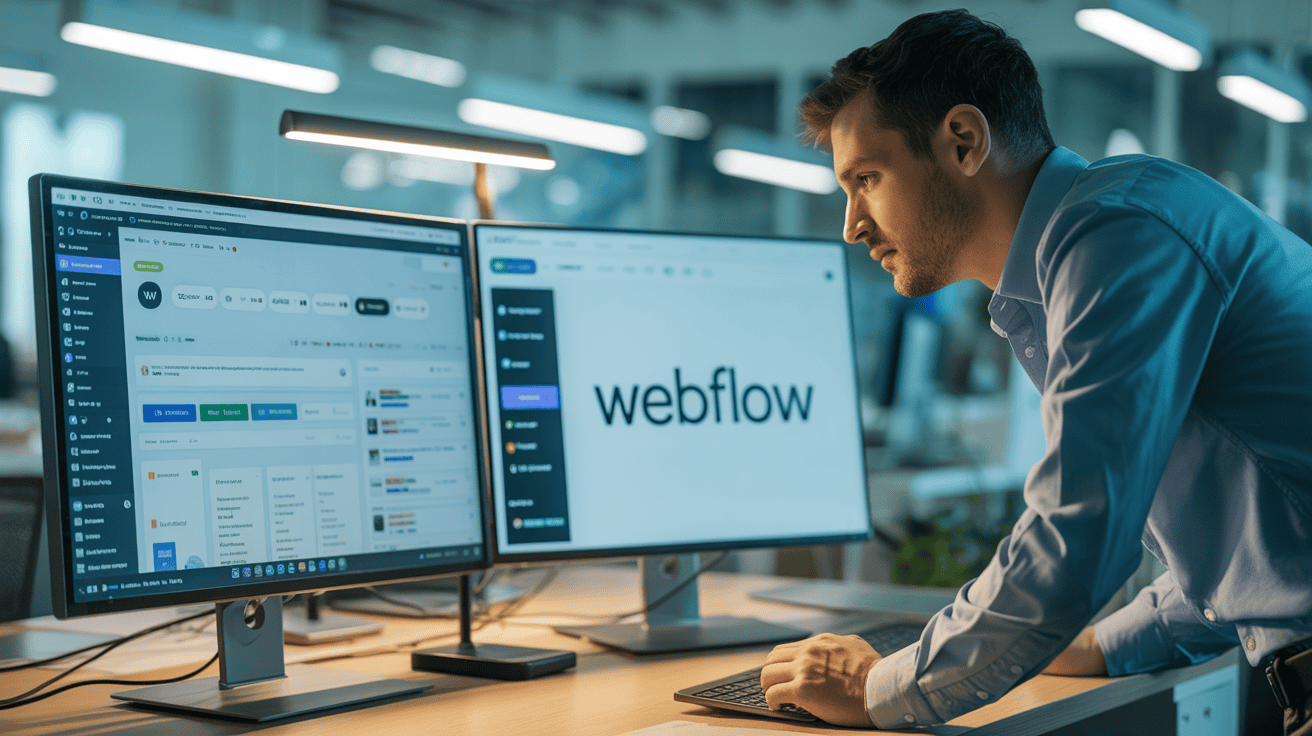
Webflow flips this on its head with a browser-based workflow. You sign up, pick a plan, and start designing immediately in a visual editor that mirrors what developers see in code. It’s like working in Adobe XD, but the result is a live site. You drag elements like text boxes or images onto a canvas, adjust spacing with sliders, and see changes in real time. There’s no separate hosting to manage since it’s built into the subscription. For content, Webflow’s CMS lets you define collections, like blog posts or products, and dynamically link them to pages, though it’s less mature than WordPress for heavy content loads.
Collaboration shines brighter in Webflow. You can invite team members to edit designs or content directly, with version control to track changes, something WordPress lacks without paid add-ons. Exporting code is a unique perk if you’re handing off to a developer, though you’re locked into Webflow’s ecosystem unless you export and host elsewhere. Updates and security? They’re handled automatically, no late-night patching required. I’ve found Webflow cuts build time in half for design-heavy projects, but it can frustrate when you hit limits on complex functionality that WordPress would handle with a quick plugin install.
When to Pick WordPress Over Webflow (and Vice Versa)
So, who are these platforms really for? I’ve worked with both across different projects, and the right choice hinges on what you’re building. WordPress excels for content-driven sites with long-term growth in mind. If you’re starting a blog aiming for thousands of posts, WordPress is hard to beat. Its plugin library, with over 50,000 options, lets you add features like affiliate tracking or membership areas as needs evolve. I’ve built news sites for clients where we started with a simple layout, then scaled to handle 100,000 monthly visitors by upgrading hosting and optimizing with caching plugins like WP Super Cache.
E-commerce is another strong suit for WordPress. Using WooCommerce, a free plugin, you can manage hundreds of products, integrate payment gateways like Stripe, and even handle subscriptions. It’s not plug-and-play, though. You’ll need to configure settings and often pay for extensions, like $49 for a shipping calculator. I’ve seen small businesses start with a basic shop and grow into full marketplaces because WordPress didn’t box them in. It’s also ideal for developers or agencies who need total control to build bespoke solutions for clients, even if that means coding custom themes from scratch.
Webflow, on the other hand, is a dream for designers and small teams who want stunning visuals without technical overhead. If you’re a freelancer showcasing a portfolio, Webflow lets you craft pixel-perfect pages in days, not weeks. I helped a photographer launch a site with animated galleries using Webflow’s built-in interactions, something that would’ve taken custom JavaScript on WordPress. It’s also great for landing pages or marketing sites where speed to launch matters more than deep functionality. Think campaign microsites or event pages that need to look slick and go live fast.
For small to medium e-commerce, Webflow holds its own with a native shopping cart and checkout system, supporting up to 100 products on lower plans. It’s less suited for massive inventories compared to WooCommerce, though. Agencies building client sites often pick Webflow for its white-label options and easy handoff process. I’ve noticed it’s a favorite for startups wanting a modern look without hiring a full dev team. The catch? If your site outgrows Webflow’s limits, like needing advanced database features, you’re stuck unless you export and rebuild elsewhere.
Getting Live: WordPress vs Webflow Setup Reality
Getting started with either platform requires a clear plan. Let’s break down the steps for WordPress first. Step one is securing a domain and hosting. I usually recommend Bluehost for beginners since their WordPress setup is a one-click install, costing about $2.95/month for the first year. After logging in, install a theme, either free from the WordPress repository or a paid option like Astra Pro at $47/year for more features. Next, add essential plugins: Yoast for SEO, UpdraftPlus for backups, and Akismet for spam protection. Each takes about 5 minutes to set up if you follow their wizards.
With the basics in place, create your core pages, home, about, contact, using the block editor. If design matters, install a page builder like Elementor, free for basic use, and drag elements into place. Test responsiveness on mobile since many themes aren’t perfect out of the box. For content, draft posts or products in the dashboard, adding images and categories to keep things organized. Before launching, check site speed with a tool like GTmetrix and install a caching plugin if load times exceed 3 seconds. Finally, connect Google Analytics via a plugin like MonsterInsights to track visitors from day one. The whole process can take a weekend if you’re focused, longer if you’re learning as you go.
Webflow’s implementation is more streamlined. Start by signing up at webflow.com and choosing a plan, the free tier works for testing, but the Site Plan at $14/month is needed to connect a custom domain. Pick a template from their marketplace, many are free, or start blank if you’re confident. Use the visual editor to build your layout, dragging in sections like headers or footers, and customize fonts and colors via the style panel. Add content through the CMS panel if it’s dynamic, like blog posts, or directly on static pages. Set up forms for lead capture, Webflow includes this natively, no add-ons needed.
Before going live, preview the site across breakpoints to ensure it looks good on desktop and mobile, Webflow’s editor makes this a breeze. Connect your domain in the hosting settings, and publish with one click since hosting is included. For tracking, integrate Google Analytics directly in the project settings, no third-party tools required. You can have a basic site up in a day, though complex designs or e-commerce setups might stretch to a week. I always advise exporting a backup of your site design, a feature unique to Webflow, in case you need to move platforms later. Both paths demand time upfront, but Webflow cuts corners on tech setup while WordPress asks for more patience.
Budget Breakdown: WordPress vs Webflow Total Cost
Money talks, so let’s compare what WordPress and Webflow hit your wallet with. WordPress is free to download, but that’s where the “free” part ends for most users. Hosting starts cheap, around $4-6/month with shared providers like Hostinger, but jumps to $20-100/month for managed WordPress hosting from WP Engine if you want speed and support. A domain costs $10-15/year. Themes range from $0 to $60 for a one-time purchase of something premium like Divi, though some charge annual fees. Plugins add up fast, a typical stack with SEO, security, and backups can run $100-200/year if you go for paid versions.
E-commerce on WordPress pushes costs higher. WooCommerce is free, but extensions for things like subscriptions or advanced shipping often cost $29-99 each. If you’re not a tech person, hiring a developer for custom work starts at $50/hour, and full site builds can hit $2,000 or more. I’ve had clients spend $500 upfront for a basic site, then $200/year on renewals, while larger projects with custom coding ballooned past $5,000. The upside? You control where to spend. Skimp on hosting if you’re small, or scale to dedicated servers for $300/month when traffic grows.
Webflow operates on a subscription model, so costs are predictable but ongoing. The basic Site Plan for a single site is $14/month, billed yearly, jumping to $39/month for the CMS Plan if you need blog features. E-commerce plans start at $29/month for up to 500 items, scaling to $235/month for larger stores. That includes hosting, security, and updates, no extra fees there. Templates are often free, but premium ones cost $19-49 as a one-off. Custom domains add $10-15/year, same as WordPress.
The catch with Webflow is you’re locked into their pricing. No downgrading hosting to save a buck, and if you need features outside their ecosystem, you’re paying developers to integrate or export code, which can match WordPress dev costs at $50-100/hour. I’ve built Webflow sites for clients at under $200 total for a year, but scaling to e-commerce often pushed us closer to $500 annually. Resourcing-wise, WordPress demands more hands-on time or hired help for maintenance. Webflow frees you from tech chores but limits budget flexibility. Pick based on whether you value control over cash or predictability over freedom.
The Numbers That Prove Platform Matters
When deciding between WordPress and Webflow, track these specific numbers to gauge fit and performance for your site. They’re not just stats, they’re your reality check.
- Build Time: Measure how long it takes to launch a basic site. Webflow often clocks in at 1-3 days for a custom design, while WordPress can stretch to 5-10 days if you’re sourcing themes and plugins without prior experience.
- Site Speed Score: Use tools like Google PageSpeed Insights. WordPress sites on shared hosting often score 60-80/100 unless optimized with caching, while Webflow’s hosted setup typically hits 80-90/100 out of the gate.
- Monthly Cost Growth: Track how expenses scale over 12 months. WordPress might start at $5/month for hosting but creep to $20 with add-ons. Webflow’s $14/month baseline can jump to $39 if you add CMS features.
- Traffic Capacity: Check hosting limits or plan tiers for visitor volume. WordPress on a $10/month shared host might cap at 25,000 visits before slowing, while Webflow’s CMS Plan handles 100,000 visits before overage fees kick in.
- Maintenance Hours: Log time spent on updates or fixes. WordPress can demand 2-5 hours monthly for plugin updates and backups if unassisted, while Webflow cuts this to near zero with automated systems.
Real Site: WordPress vs Webflow in Action
A few months back, I worked with a small design studio needing a portfolio site to showcase client work. They had a tight deadline of two weeks and no in-house developer. We went with Webflow, starting on the $14/month Site Plan. Using a free template as a base, I customized the layout in their visual editor, adding animated hover effects to project thumbnails, something that would’ve needed custom code on WordPress. The CMS feature let us set up a dynamic gallery tied to a collection, so they could upload new projects without touching the design.
Total build time was three days, and the site scored 87/100 on Google PageSpeed Insights right after launch, no extra optimization needed. Hosting was baked into the subscription, so no separate bills to track. On the flip side, when they asked about adding a blog later, we hit a wall, the $14 plan didn’t support enough CMS items, and upgrading to $39/month felt steep for their budget. If we’d chosen WordPress, build time would’ve doubled to a week with a page builder like Elementor, and hosting would’ve added $5-10/month, but blog functionality would’ve been free and limitless with the core software. This trade-off showed me Webflow’s strength in speed and design, but also its constraints for evolving content needs.
Which Platform Should You Actually Choose?
Now that you’ve got the full picture on WordPress vs Webflow, it’s time to act. First, list out your priorities, is design control non-negotiable, or do you need room to scale content over years? If you’re leaning WordPress, grab a hosting plan from a provider like SiteGround and download a free theme to test the waters. Spend a day playing with the block editor to see if the workflow clicks. For Webflow, sign up for their free plan and build a sample page using their tutorials, check if the visual editor saves you the hassle you expect.
Whichever you pick, set a hard deadline to launch a minimum viable site, say two weeks, to avoid overthinking. Use the metrics I outlined to benchmark speed and cost as you go. If you’re stuck between the two, mock up a small project on both platforms, a homepage will do, and compare the time and frustration levels firsthand. I’ve made the mistake of over-analyzing this choice, don’t fall into that trap. Pick, build, and adjust as you learn. Your site isn’t set in stone, it’s a tool to refine over time.
Too Torn Between Platforms? Let Us Decide
Look, I get it. Everything I’ve laid out about WordPress vs Webflow works, but it’s a lot to take on if you’re running a business. Your time is better spent closing deals or creating products than wrestling with hosting setups, plugin conflicts, or design limitations. That’s exactly where SEO Clicks Pro steps in. We build and manage sites on either platform, tailored to your goals, whether it’s a content-heavy WordPress setup or a sleek Webflow portfolio. You focus on what you’re great at, and we’ll handle the tech, from launch to ongoing updates. If you’d rather skip the headache and get a site that performs, start here at SEO Clicks Pro.